 RAE Portal — User Guide
User Guide
A step-by-step walkthrough for completing your RAE submission in the WALGA Portal.
Contents
1. Signing In
Sign In with Your Council Credentials
Open the RAE Portal in your browser and you will land on the sign-in page. The page shows the active financial year and offers two ways to sign in.
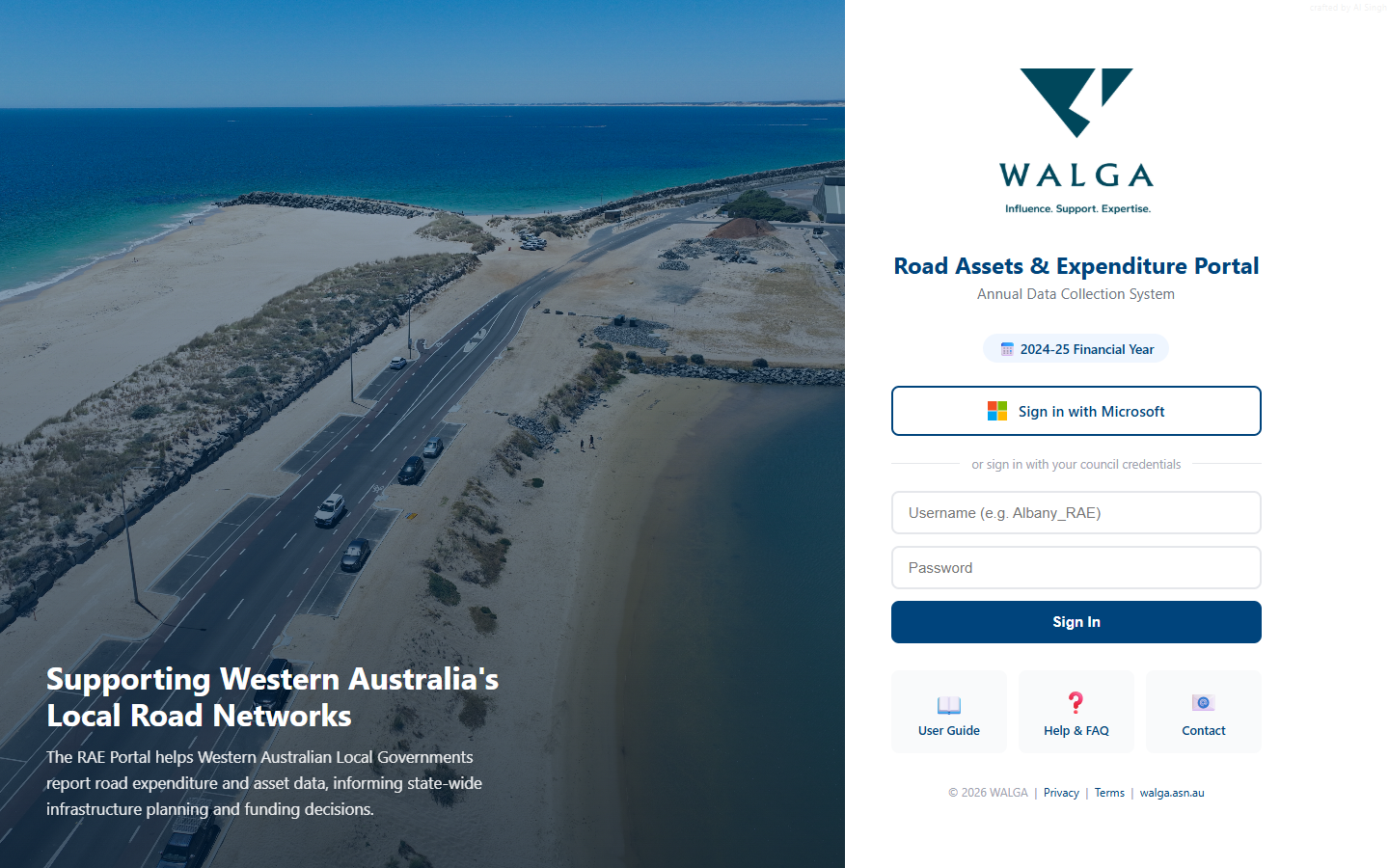
Use the council credentials issued to your council:
- Username — a generic identifier such as
Albany_RAE - Password — the strong password sent to your council in the annual data collection email
Enter both, then click "Sign In". Microsoft Sign-In above is reserved for WALGA staff and approvers — councils should use the username/password fields below it.
2. Your Dashboard
View Your Submissions
After signing in, you will see your council's dashboard. This shows all your submissions with their current status, the collection period, and quick statistics.
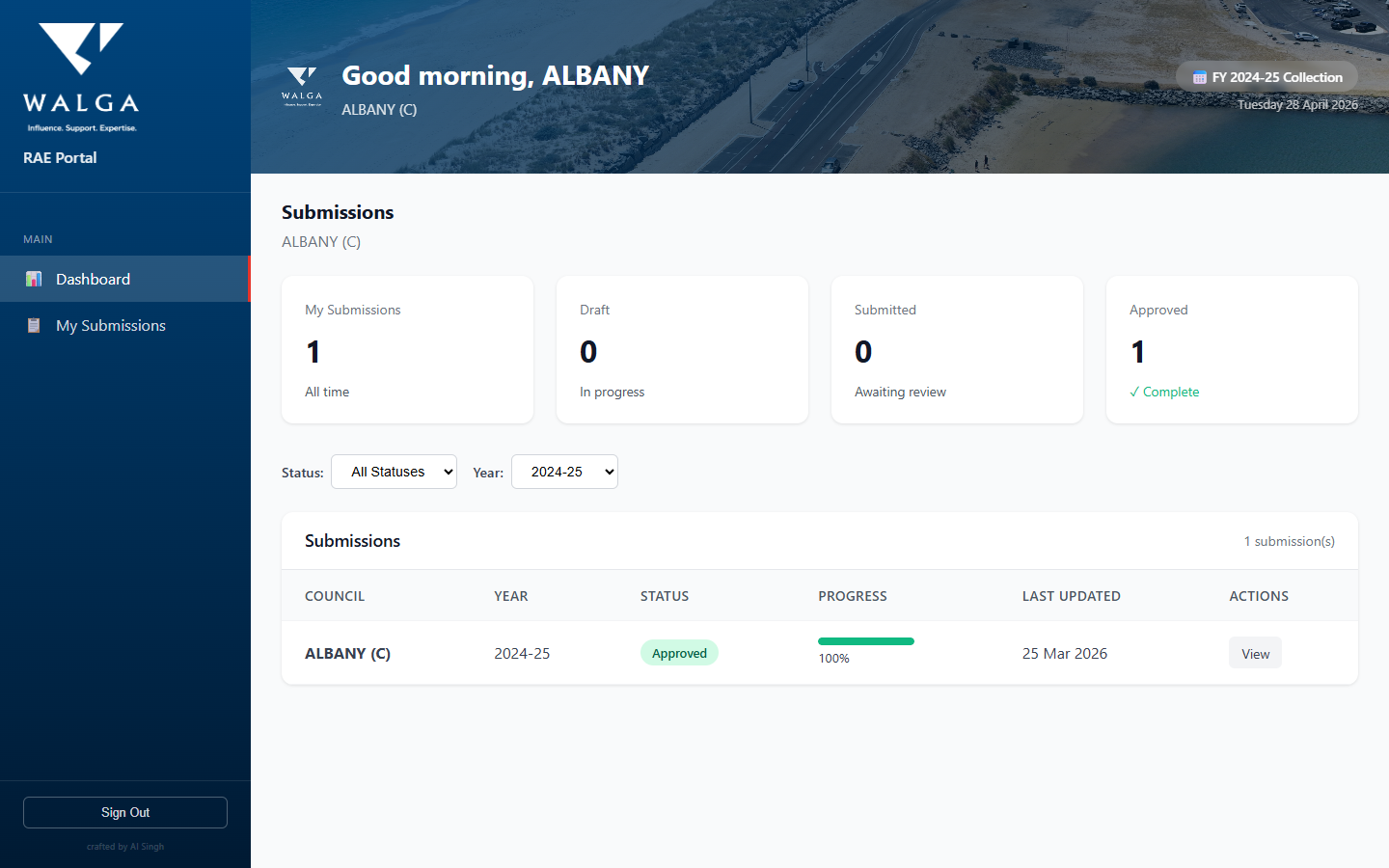
From here you can:
- Start a new submission by clicking "New Submission"
- Continue a draft by clicking "View" on an existing submission
- Filter submissions by status or financial year
3. Cover Sheet
Enter Contact Details
The Cover Sheet captures your council's contact information for this submission. Fill in the Primary Contact — name, email, and phone — for the person responsible for this return.
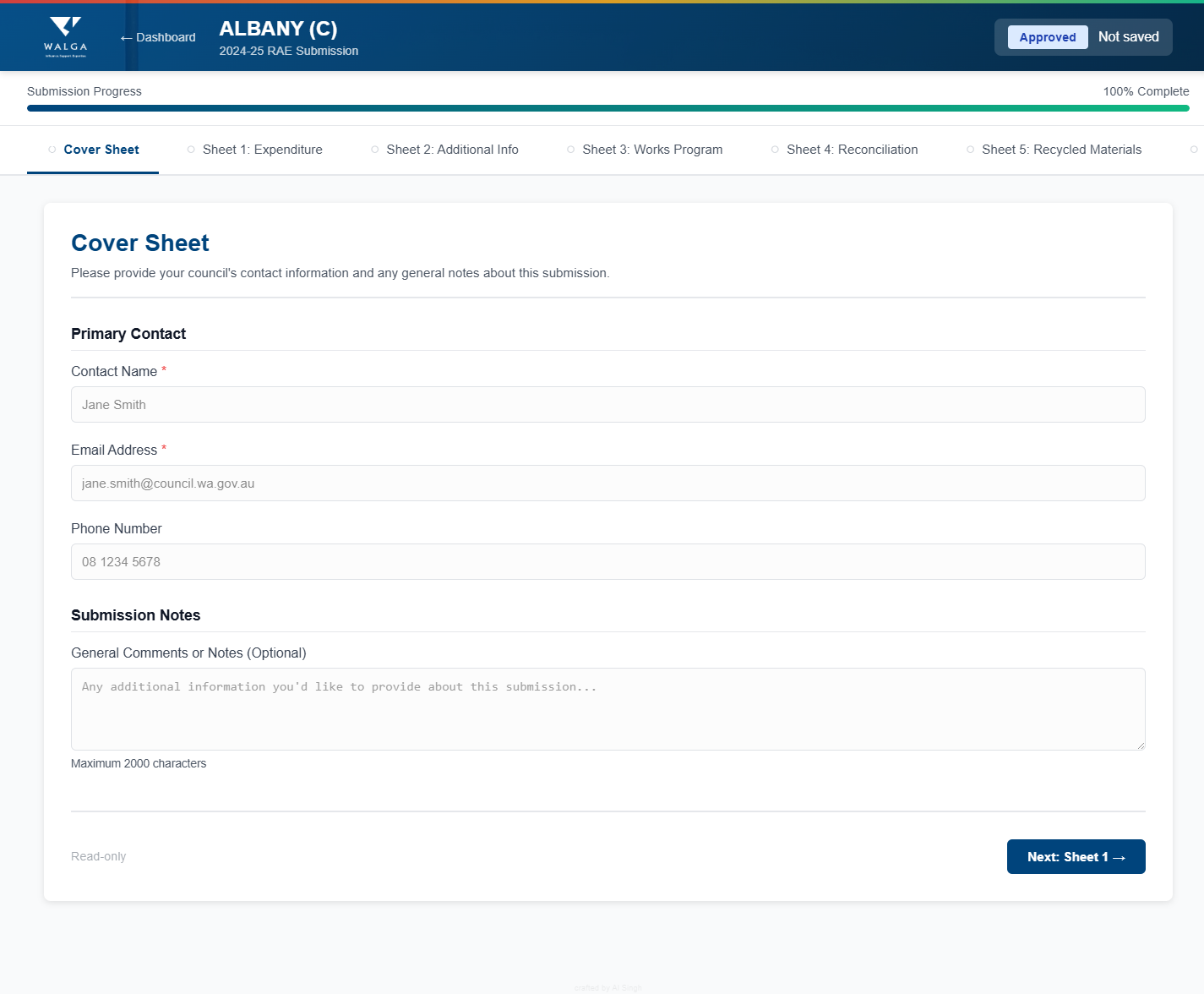
Sections on this page:
- Primary Contact — the person completing the submission (name and email are required, phone is optional)
- CEO Certification — for years where WALGA requires it, an additional CEO sign-off block appears here
- Submission Notes — optional general comments for the WALGA team (up to 2,000 characters)
4. Sheet 1: Road Expenditure
Report Funding Sources & Expenditure
Sheet 1 is divided into two tables. All amounts are entered in $000s (thousands of dollars).
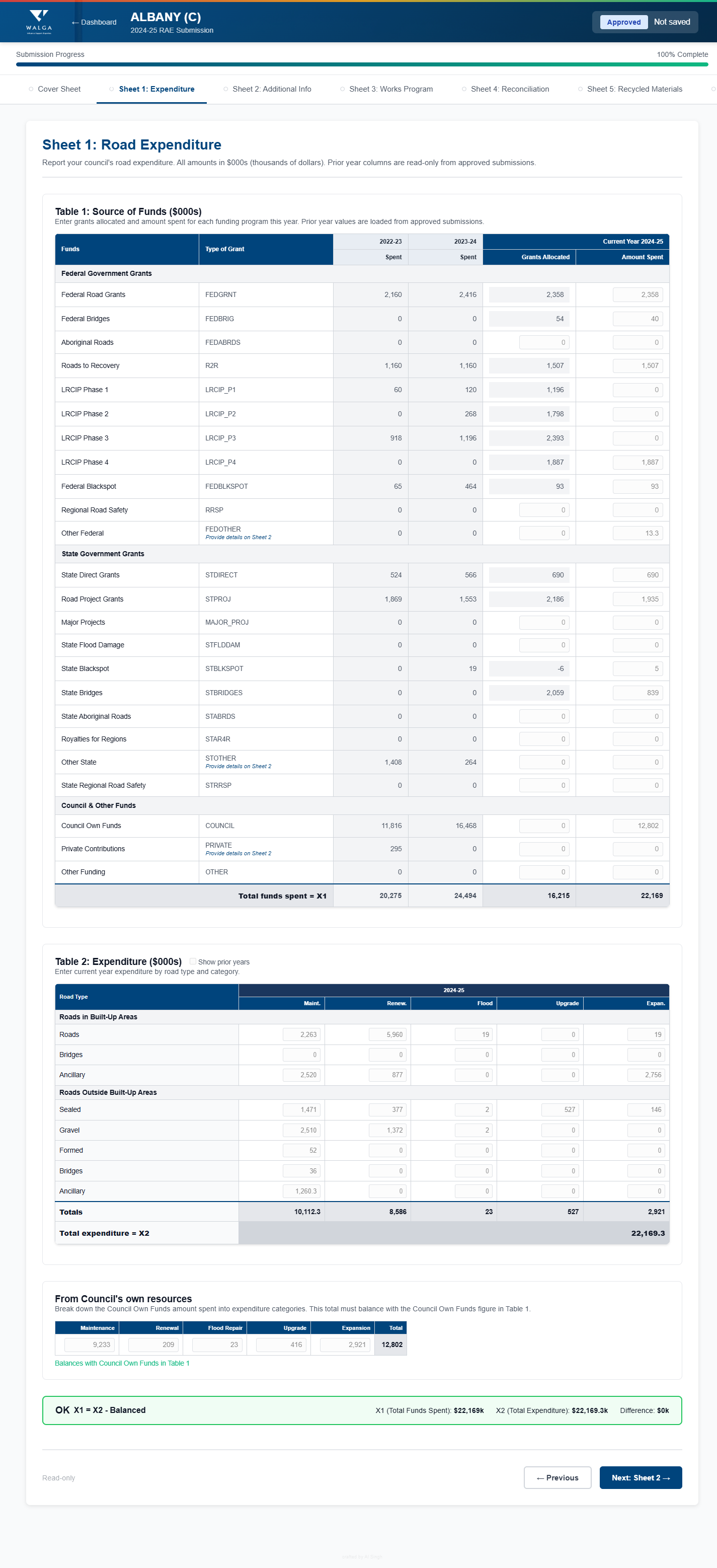
Table 1: Source of Funds
Enter the grants allocated and amount spent for each funding program — Federal, State, Council and Other — for the current financial year. The two columns to the left show the previous two years' spend; they are read-only and load automatically from approved submissions.
Table 2: Expenditure
Enter current year expenditure by road type and category. The five categories are Maintenance, Renewal, Flood Damage, Upgrade, and Expansion. Rows are split into:
- Roads in Built-Up Areas — Roads, Bridges, Ancillary
- Roads Outside Built-Up Areas — Sealed, Gravel, Formed, Bridges, Ancillary
A From Council's own resources sub-table at the bottom asks how the Council Own Funds total breaks down by category. That sub-table must balance against the Council Own Funds figure on Table 1.
5. Sheet 2: Additional Information
Break Down Other Grants and Contributions
Sheet 2 collects detail behind any "Other" grants and private contributions reported on Sheet 1. For each fund type, give the source, the purpose, and the amount in $000s. The breakdown total must match the corresponding Sheet 1 figure.
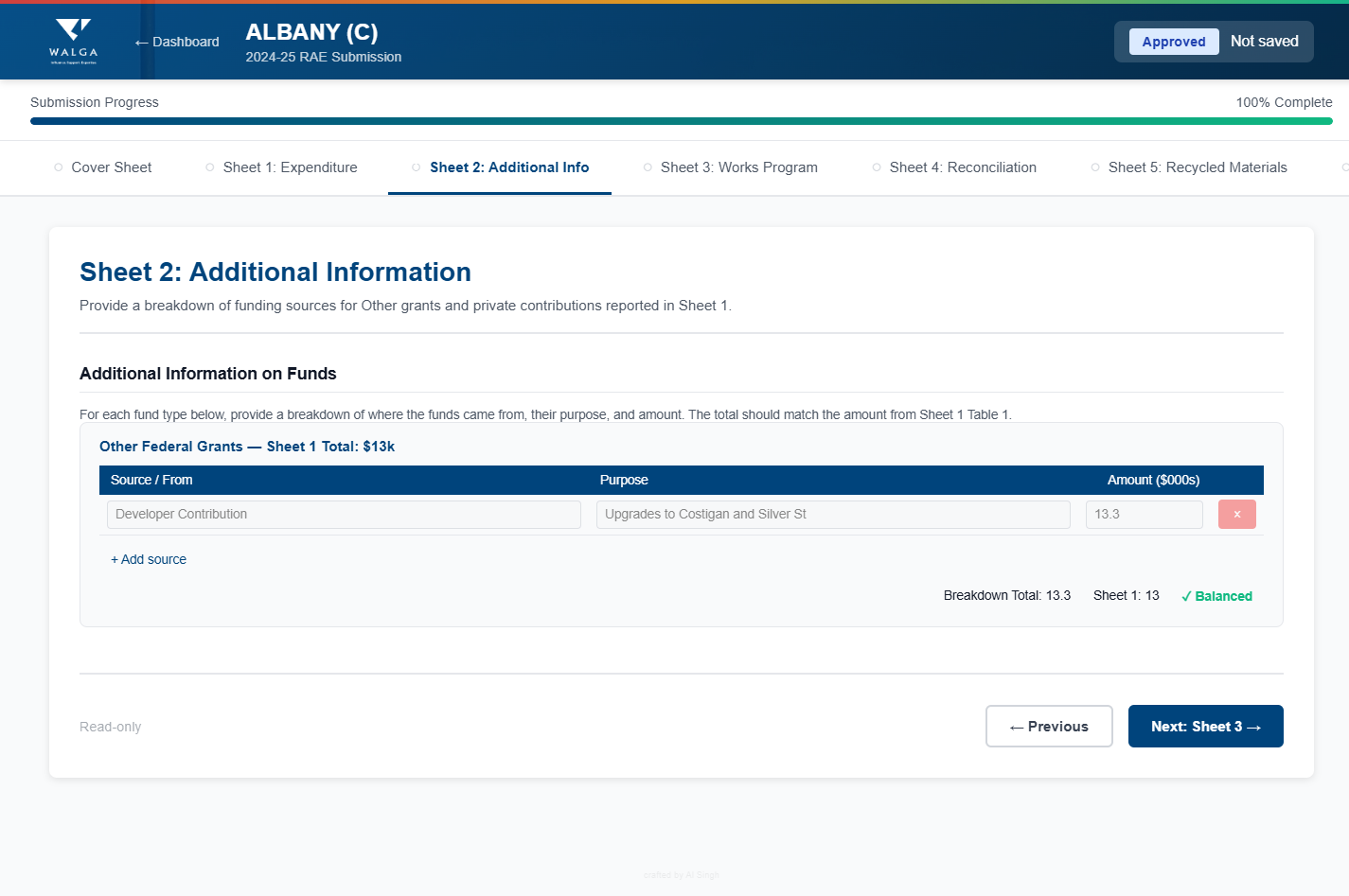
The page only shows fund types you actually used on Sheet 1. Typical lines:
- Other Federal Grants (FEDOTHER)
- Other State Grants (STOTHER)
- Private Contributions (PRIVATE) — e.g. developer contributions
- Other Funding (OTHER)
Click "+ Add source" to add another row inside a fund block. A green ✓ Balanced indicator confirms each block matches its Sheet 1 total.
6. Sheet 3: Work Carried Out
Report Physical Road Works
Sheet 3 records the physical road works completed during the financial year — quantities (km, m²) and the associated expenditure. This data feeds Tables 26 and 27 in the published RAE Report.
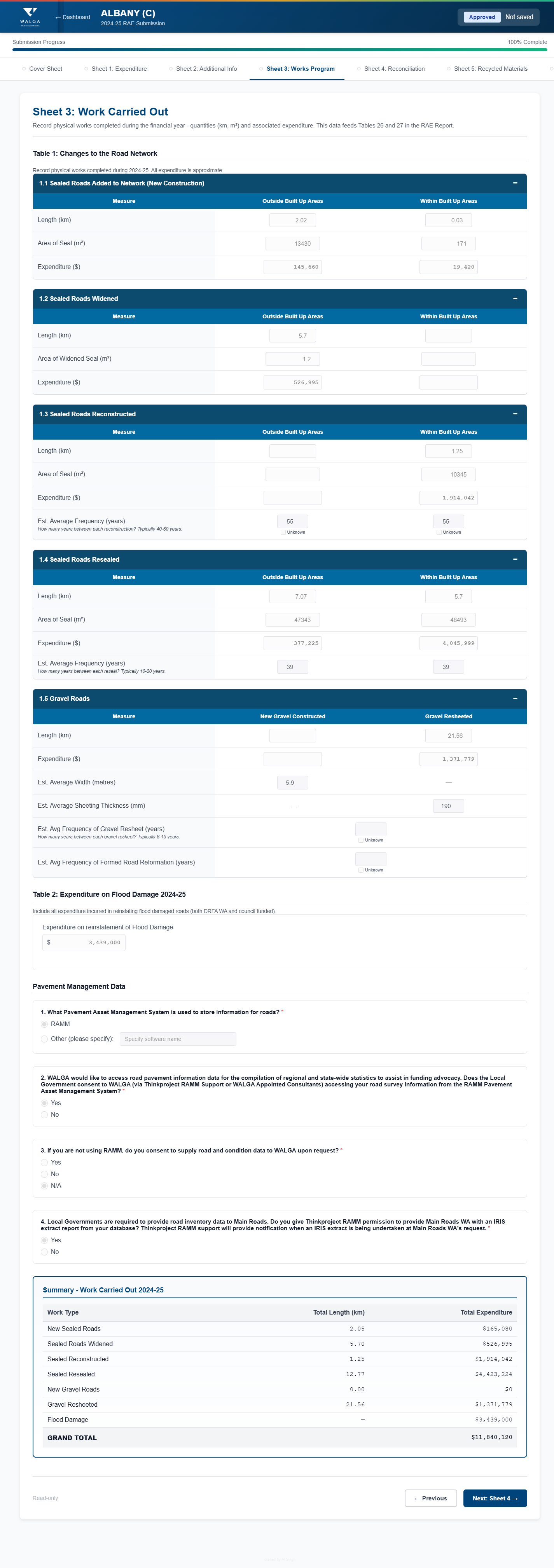
Subsections:
- Table 1: Changes to the Road Network — five expandable blocks:
- 1.1 Sealed Roads Added to Network (New Construction)
- 1.2 Sealed Roads Widened
- 1.3 Sealed Roads Reconstructed
- 1.4 Sealed Roads Resealed
- 1.5 Gravel Roads
- Table 2: Flood Damage Expenditure — total spend on flood damage including DRFAWA / council-funded
- Pavement Management Data — four short questions: which Pavement Asset Management System you use, whether you consent to WALGA accessing your road survey data, whether you'll supply road condition data on request, and Thinkproject RAMM permission for Main Roads WA
- Summary — Work Carried Out — auto-calculated totals by work type with grand total length and expenditure
7. Sheet 4: Reconciliation
Verify Cross-Sheet Consistency
Sheet 4 compares your financial expenditure (Sheet 1) with your physical works (Sheet 3) to identify any variances. This helps ensure data consistency.
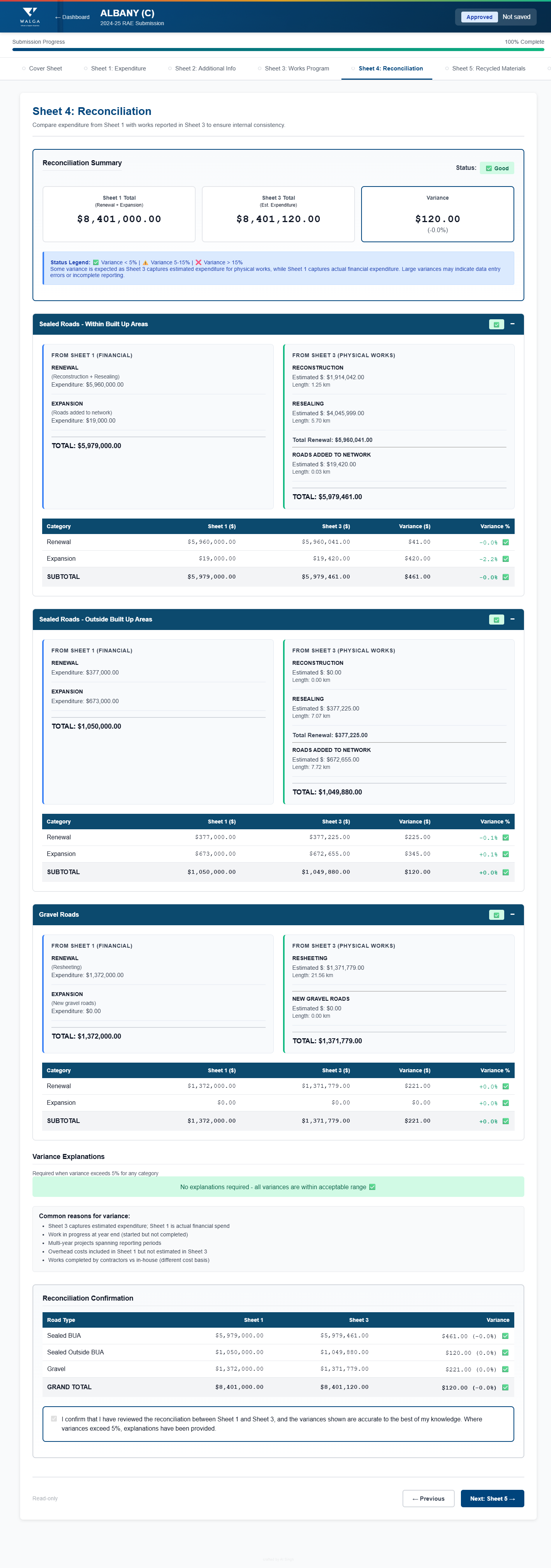
The reconciliation covers three categories:
- Sealed Roads — Within Built Up Areas
- Sealed Roads — Outside Built Up Areas
- Gravel Roads
For each category, the system shows Sheet 1 (financial) and Sheet 3 (physical works) totals side by side, with the variance amount and percentage. Status indicators show:
- Green tick — variance under 5% (acceptable)
- Warning — variance 5–15% (review recommended)
- Red cross — variance over 15% (explanation required)
8. Sheet 5: Recycled Materials
Report Recycled Materials Usage
Sheet 5 captures the quantity of recycled materials used in your road construction and maintenance works during the financial year.
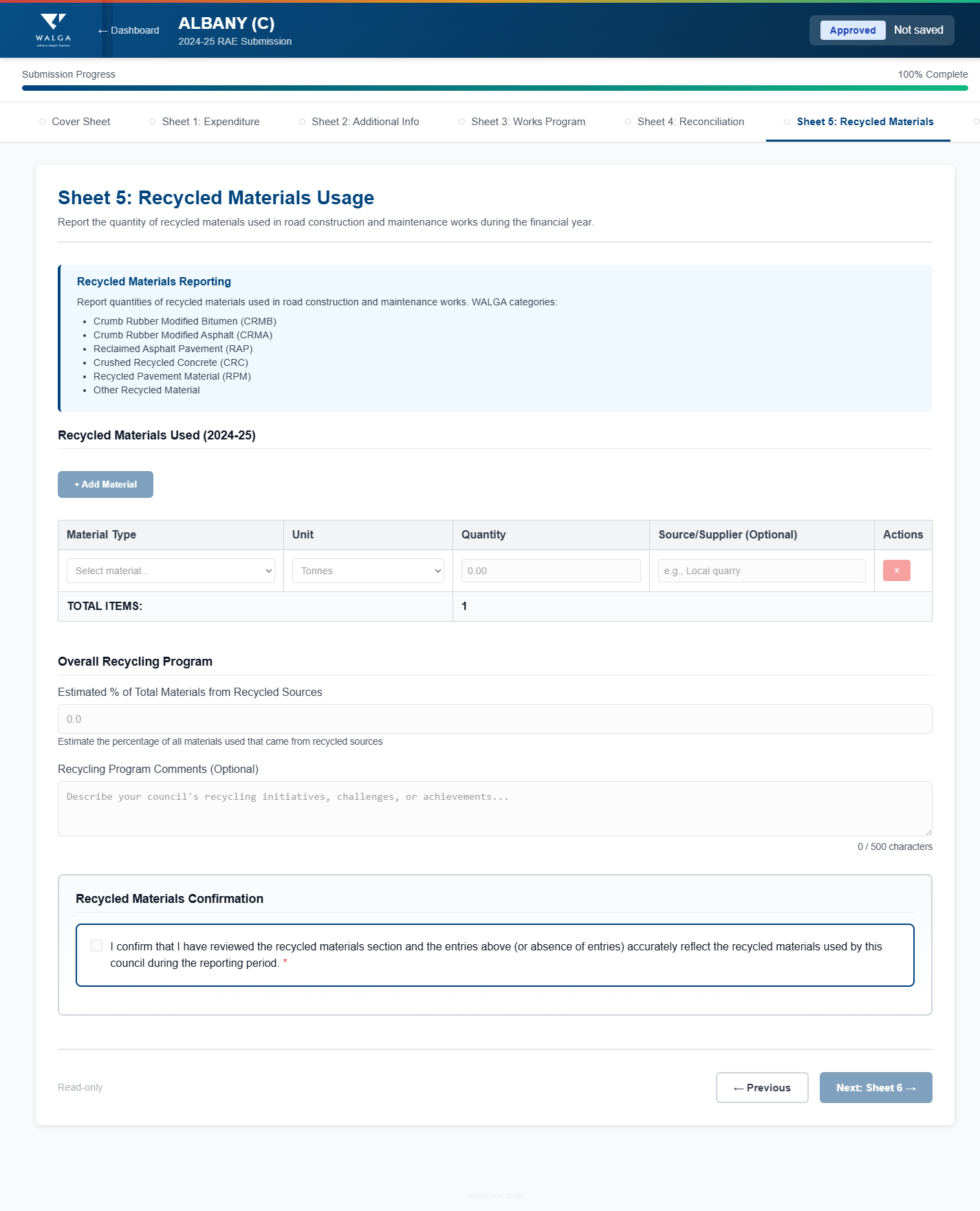
Click "+ Add Material" to add a row for each recycled material used. Pick the material type from the WALGA categories — Crumb Rubber Modified Bitumen (CRMB), Crumb Rubber Modified Asphalt (CRMA), Reclaimed Asphalt Pavement (RAP), Crushed Recycled Concrete (CRC), Recycled Pavement Material (RPM), or Other Recycled Material — then enter unit, quantity, and optionally source or supplier.
The Overall Recycling Program section captures the estimated percentage of total materials sourced from recycling, plus optional comments about your council's recycling initiatives, challenges or achievements.
Before continuing you must tick the Recycled Materials Confirmation checkbox to confirm the rows above (or absence of rows) accurately reflect what was used.
9. Sheet 6: Active Transport Infrastructure
Report Path Infrastructure
Sheet 6 collects path infrastructure data separately from the road network captured on Sheet 3. There is one row per category — four rows in total — so the page is fast to complete.
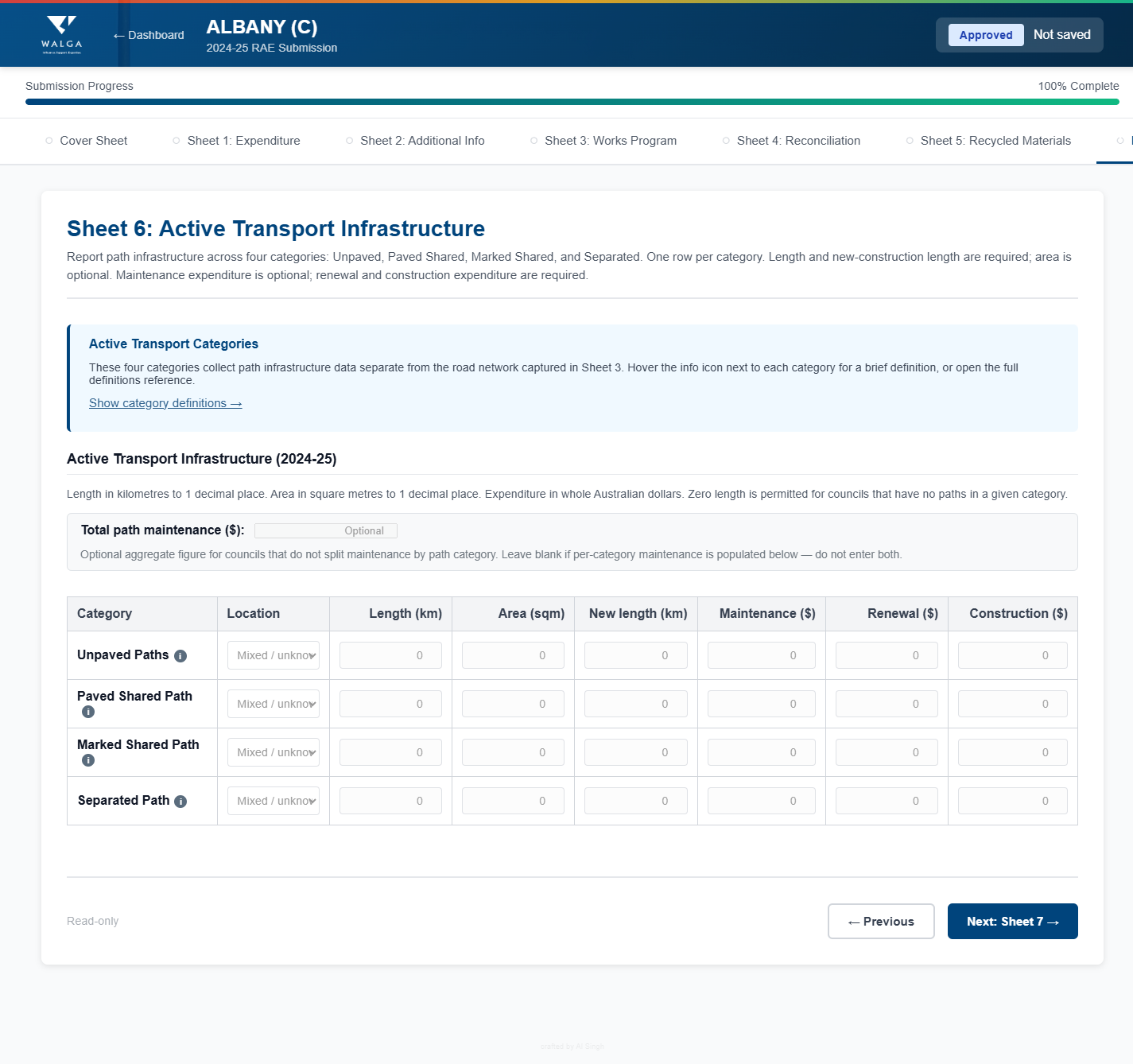
The four categories are:
- Unpaved Paths
- Paved Shared Path
- Marked Shared Path
- Separated Path
For each category enter:
- Location — Built-Up Area (BUA), Outside Built-Up Area (NBU), or Mixed / Unknown
- Length (km) to 1 decimal place — required (zero is allowed if your council has no paths in that category)
- Area (m²) to 1 decimal place — optional
- New length (km) built this year — required
- Maintenance ($) — optional, in whole AUD
- Renewal ($) and Construction ($) — required, in whole AUD
If your council does not split maintenance by category, leave per-row Maintenance blank and use the Total path maintenance ($) field at the top of the table for a single aggregate figure. Use one or the other — never both.
Hover the info icon next to a category to see a brief definition, or click Show category definitions → for the full reference.
10. Sheet 7: Year-Specific Questions (conditional)
Answer WALGA's Period-Specific Questions
Sheet 7 appears only when WALGA has curated year-specific questions for the current reporting period. If no questions are configured, the sheet and its tab are hidden and the form jumps straight from Sheet 6 to Review & Submit.
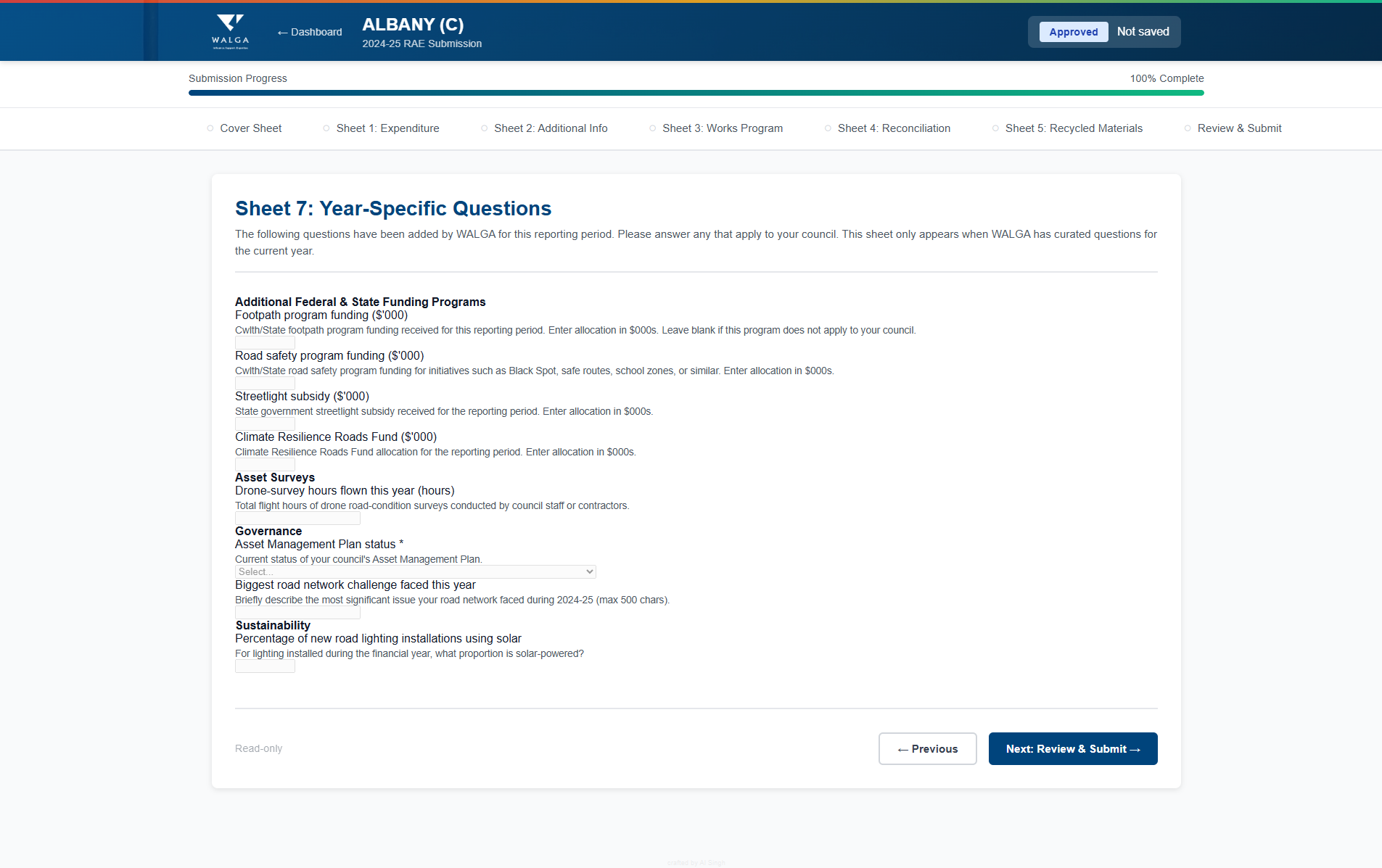
Questions are grouped (for example Additional Federal & State Funding Programs, Sustainability, Governance) and may use any of these field types:
- Number / currency / percentage — numeric inputs with units and decimal-place rules
- Dropdown — pick one of WALGA's allowed values
- Text — short free-text answers (typically capped at 500 characters)
Required questions are marked with a red asterisk (*). Optional questions can be left blank if they don't apply to your council.
11. Review & Submit
Final Review and Submission
The Review & Submit page is the last stop. It shows your submission status, financial totals, a per-section validation tile, a feedback survey, and the declaration.
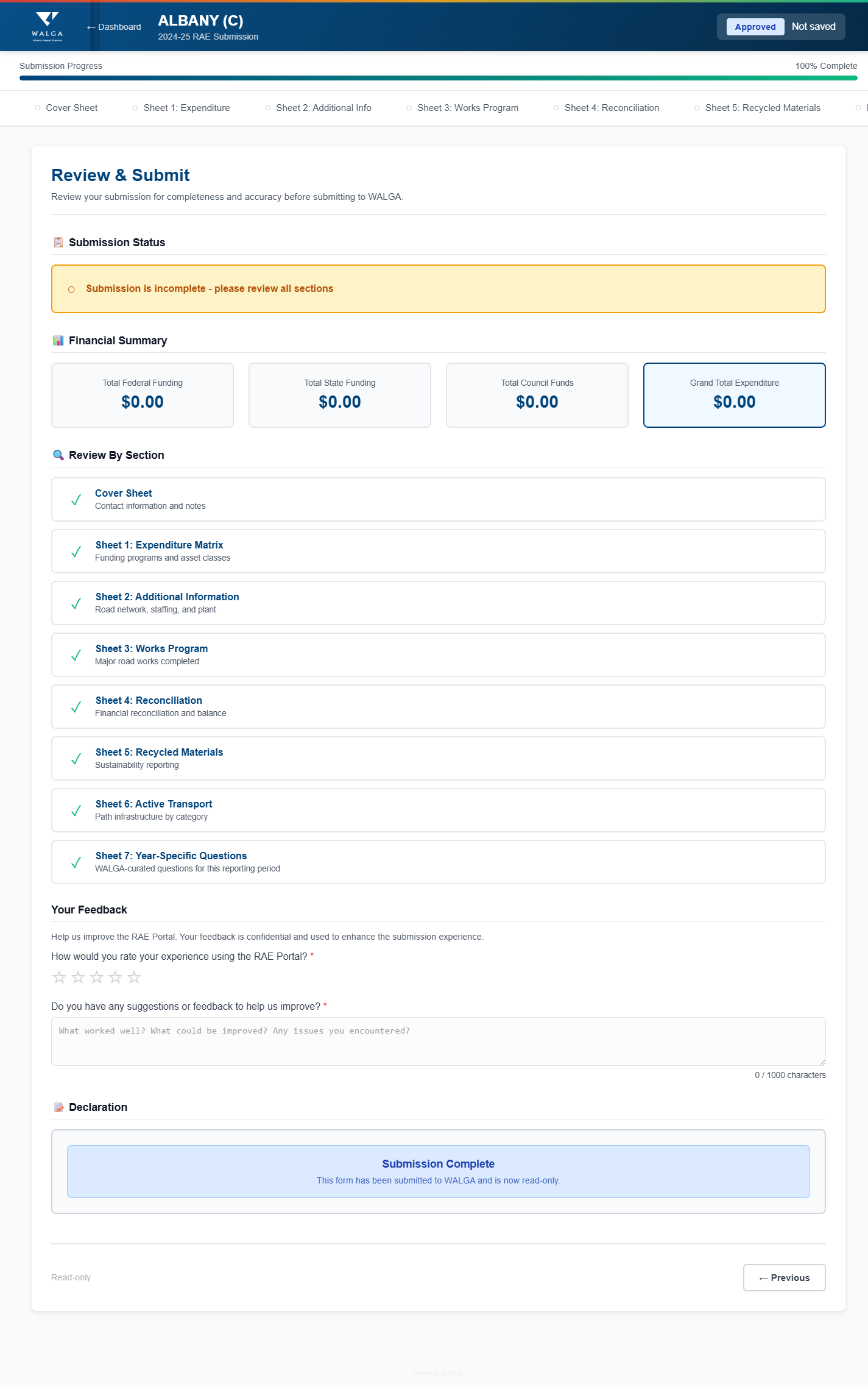
Sections on this page:
- Submission Status — banner showing whether all sheets are complete
- Financial Summary — total Federal, State, Council funding and Grand Total Expenditure
- Review By Section — tick / circle indicators for each sheet (Cover through Sheet 7); click any tile to jump back and fix issues
- Your Feedback — a quick star rating and a short comment box to help WALGA improve the portal
- Declaration — type your name and position, tick the declaration checkbox, then click "Submit to WALGA"
The Submit button is only enabled when every required section is complete and the declaration is ticked. Once submitted the form becomes read-only.
12. After Submission
Once submitted, your return enters the WALGA review process. You will receive email notifications as the status changes:
- Submitted — received and awaiting review
- In Review — currently being assessed by WALGA
- Returned — sent back for corrections (you will be notified of what to fix)
- Approved — accepted and finalised
If your submission is returned for corrections, you can edit it and resubmit. If you need to make changes after submission, contact the WALGA Roads team to have it returned to you.
Need Help?
For assistance with your submission, contact the WALGA Roads team:
Email: infrastructure@walga.asn.au
Phone: (08) 9213 2000
Hours: Monday – Friday, 8:30 AM – 5:00 PM AWST
See also: Help & FAQ